The most common situation is simple: subtitles are too early or subtitles are too late by the same number of seconds. When that happens, subtitle synchronization usually takes only a few minutes.
Why subtitles do not match the video
This often happens when the subtitle file was created for a different release, cut, or frame rate. Sometimes the subtitle timing is wrong by the same amount throughout the whole video, and sometimes the mismatch grows over time.
How to sync subtitles with video: step by step
- Open the video and subtitle file in your player or subtitle editor.
- Find a line where the exact start of the spoken phrase is easy to hear.
- Determine whether subtitles are early or late.
- The rest of this article explains how to shift the subtitles.
- Check a few more scenes at the beginning, middle, and end of the video.
Tip: if the mismatch is the same everywhere, a simple time shift is enough. If the difference becomes larger toward the end, the subtitle file may belong to another video version.
Example: subtitles are 0.7 seconds late
Suppose a line is spoken at \(00:12:34\) in the video, but the subtitle appears at \(00:12:34.700\). That means the track is about 0.7 seconds late — you need to shift the subtitles earlier by 0.7 seconds (a negative offset).
You can apply this in a couple of clicks with our tool: Subtitle Synchronizer Online. It can shift timings forward/backward (seconds or milliseconds) and works entirely in your browser.
Where can you shift subtitles?
You can edit subtitles in a plain text editor, including the display timestamps, but that is usually not practical. You can read about how the subtitle format works in our article on the SRT format. For SRT, text fixes and an easy global timing shift also work well in DualSubs’ online editor; see How to edit SRT subtitles.
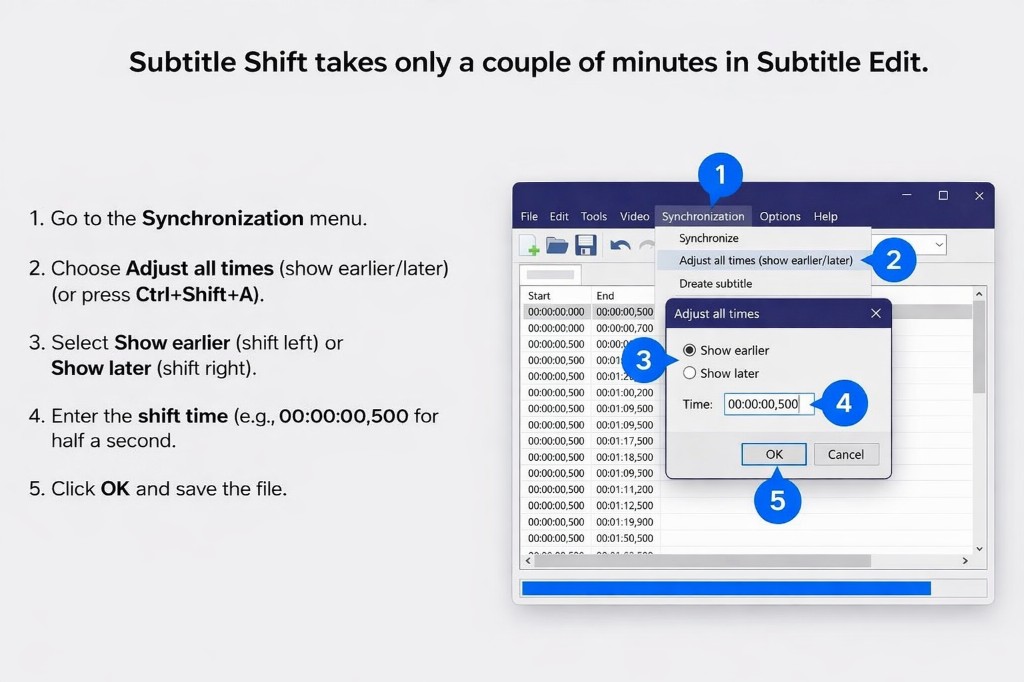
Shifting all subtitles in Subtitle Edit
In Subtitle Edit you can shift all subtitles by a fixed amount (for example, half a second forward or backward). Step by step:
- Go to the Synchronization menu.
- Select Adjust all times (show earlier/later) or press Ctrl+Shift+A.
- In the dialog, choose:
- Show earlier — to shift subtitles earlier (to the left);
- Show later — to shift subtitles later (to the right).
- Enter the time offset (for example, for half a second use
00:00:00,500). - Click OK. All subtitles will be shifted by the specified amount. Save the file.
Download Subtitle Edit: GitHub — Subtitle Edit (releases).
What if the timing error is different at the start and end?
If subtitles are almost correct at the beginning but far off near the end, a simple shift may not be enough. In that case, you may need to stretch or recalculate subtitle timing so it matches your video file.
Common problems
The two subtitle tracks do not match each other in timing
If the original and translated subtitles are out of sync with each other, sync each track to the video first, and only then merge them into one file. Otherwise, the lines will not display correctly together.
One subtitle line is too long
Sometimes the translation takes too much space on screen. In that case, a shorter translation or a quick subtitle edit before merging can improve readability.
The player does not display special characters correctly
Check the subtitle encoding and font in your player settings. In many cases, switching to UTF-8 solves the problem.
After synchronization, you can merge both subtitle tracks on our service.
Upload the original and translated subtitles and get one ready-to-use file.
Merge Subtitles Online