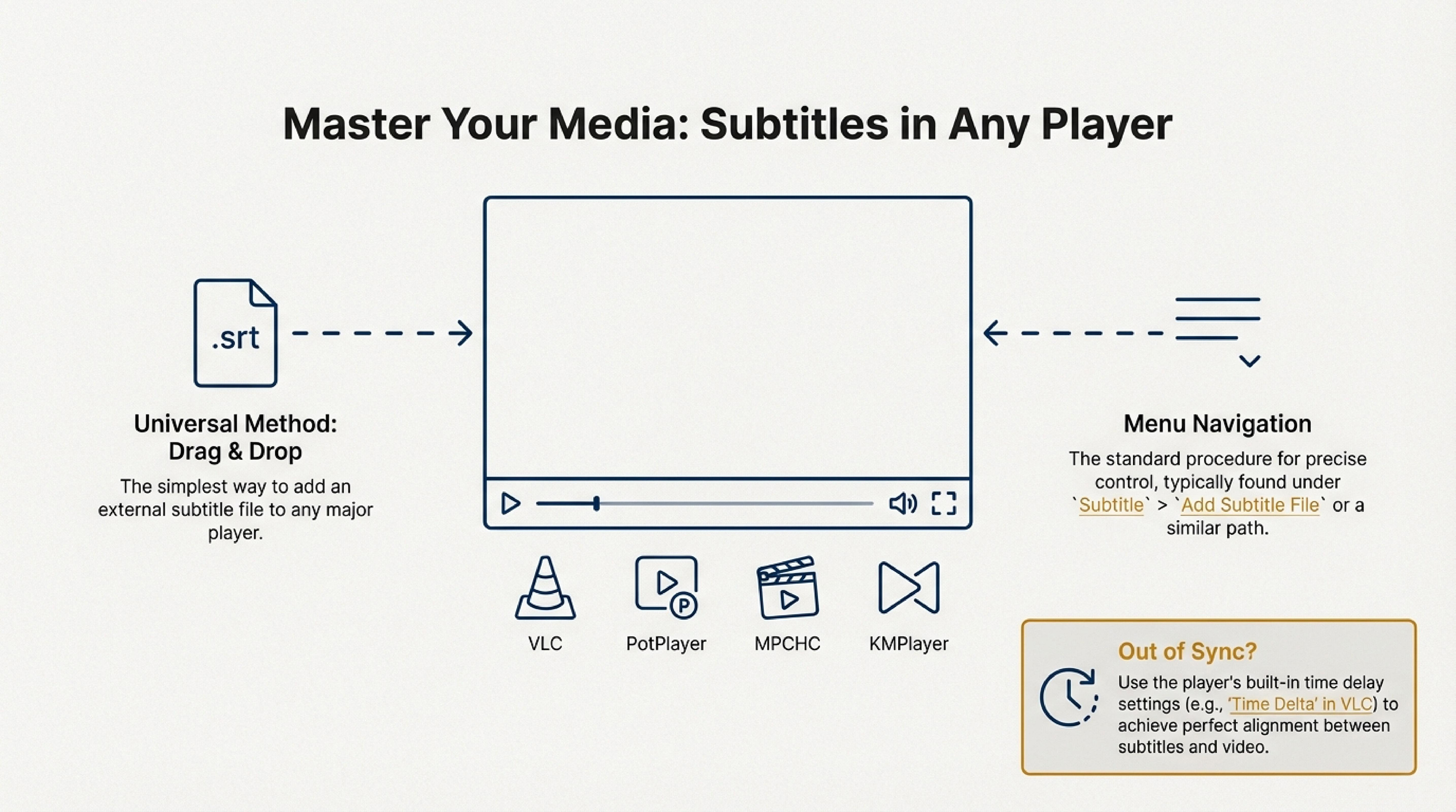
1. VLC Media Player
How to Enable Subtitles:
- Open video in VLC.
- Right-click on the screen and select "Subtitles".
- In the menu, select "Enable Subtitles" (if they are already embedded in the file or available online).
How to Add Your Own Subtitle Track:
- Drag the subtitle file (for example, .srt, .sub, or .vtt) into the player window.
- Or through the menu: "Subtitles" → "Add Subtitle File".
- Find and select the subtitle file on your computer.
Tip: If subtitles are not synchronized with the video, you can change their delay through the menu "Subtitles" → "Time Delta".
2. PotPlayer
How to Enable Subtitles:
- Launch video in PotPlayer.
- Right-click on the screen, select "Subtitles".
- In the menu, select "Enable Subtitles".
How to Add Your Own Subtitle Track:
- Drag the subtitle file into the PotPlayer window.
- Or through the menu: "Subtitles" → "Load Subtitle".
- Find and select the desired subtitle file on your computer.
Tip: In PotPlayer, you can also configure the font and size of subtitles through "Subtitles" → "Subtitle Settings".
3. Media Player Classic – Home Cinema (MPC‑HC)
How to Enable Subtitles:
- Open video in MPC‑HC.
- Go to the "Subtitles" menu in the top panel.
- Select "Enable Subtitles".
How to Add Your Own Subtitle Track:
- Drag the subtitle file into the player window.
- Or through the menu: "File" → "Load Subtitles" and select the desired file.
Tip: You can configure subtitles by going to "View" → "Options" → "Subtitles", where you can choose the font, color, and other parameters.
4. KMPlayer
How to Enable Subtitles:
- Open video in KMPlayer.
- Right-click on the screen and select "Subtitles".
- Enable "Enable Subtitles".
How to Add Your Own Subtitle Track:
- Drag the subtitle file into the player window.
- Or through the menu: "Subtitles" → "Load Subtitle" and select the desired file.
Tip: If subtitles are not displayed correctly, you can configure the encoding and font through "Preferences" → "Subtitles".
Conclusion
Each of these players offers simple ways to enable subtitles and add your own subtitle tracks. It's important to remember that the subtitle file format must match what the player supports (for example, .srt, .sub, .vtt) so they display correctly.
If you need to fix an SRT track’s text or timings before loading it into a player, try the online SRT editor or read How to edit SRT subtitles.
If you encounter problems with subtitle synchronization, most players allow you to adjust the delay or change timestamps to achieve the perfect result.